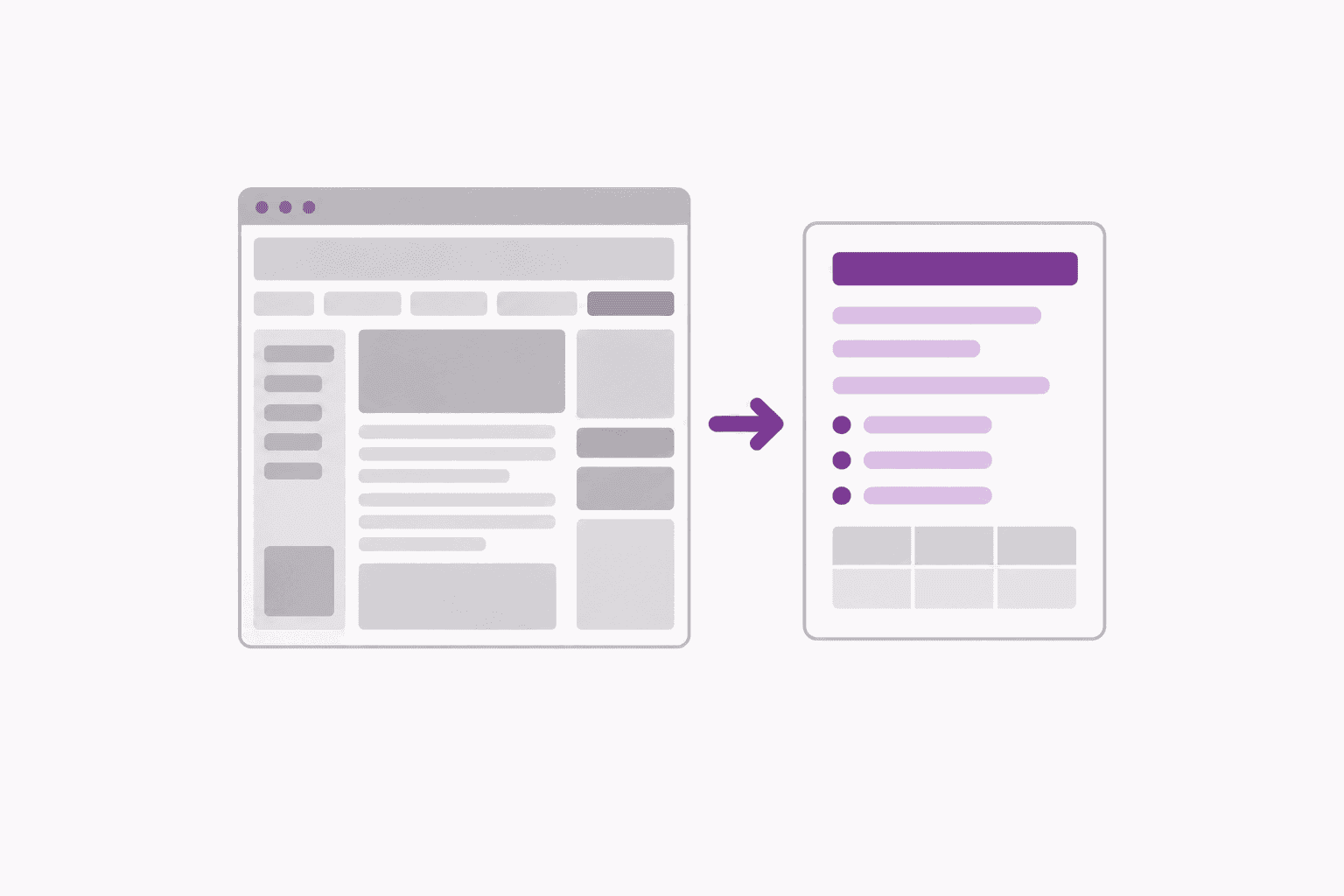
How paste to Markdown works
When you copy formatted text, your computer puts two versions on the clipboard: plain text, and an HTML version that records the headings, bold, lists, links and tables. A plain-text box only takes the first. A paste-to-Markdown converter reads the second and rewrites it as Markdown, so a heading becomes a line starting with #, a bullet becomes a line starting with *, and a table becomes rows of pipes.
That is why the same three steps work for almost any editor: select, copy, paste into the HTML to Markdown converter. The conversion runs in your browser, so the document is not uploaded anywhere.
Google Docs to Markdown
Google Docs can produce Markdown itself, which is the shortest route for a whole document:
- Download the document. File, then Download, then Markdown (.md).
- Copy part of it as Markdown. Turn on Tools, Preferences, “Enable Markdown” once. After that, select some text, right-click and choose Copy as Markdown.
Pasting into the converter is the alternative when you do not want to change a setting. Docs marks bold and italic with styling instead of tags, and wraps the whole selection in an extra layer; the converter accounts for both, so bold stays bold and the text does not come out entirely emphasised.
Word to Markdown
Word has no Markdown option in its Save As list at the time of writing, so pasting is the simple way. Select the text in Word, copy it, and paste it into the Word to Markdown converter.
Two things decide how clean the result is. First, use Word’s heading styles (Heading 1, Heading 2). Text that is only made large and bold is still a paragraph to the clipboard, so it comes out as a bold line, not a heading. Second, use Word’s real bulleted and numbered lists. Word writes each list item as a paragraph with the bullet typed in front; the converter turns those back into proper Markdown lists, with nesting. Lines where someone typed a dash and a space by hand stay as plain lines.
Notion to Markdown
Notion also exports Markdown directly: open the page’s ••• menu, choose Export, and pick “Markdown & CSV”. You get a .zip with one .md file per page; databases come out as CSV files rather than Markdown.
For a few blocks, copy and paste is quicker. Select the blocks, copy, and paste them into the converter. Toggles, callouts and columns have no Markdown equivalent, so expect their text to arrive as ordinary paragraphs.
What survives the clipboard
| In the document | In the Markdown |
|---|---|
| Heading styles | #, ##, ### at the same levels |
| Bold and italic | **bold** and *italic* |
| Bulleted and numbered lists | Markdown lists, nested the same way |
| Links | [text](address) |
| Simple tables | Pipe tables, first row as the header |
| Tables with merged cells | Written out row by row, because Markdown tables cannot merge cells |
| Pictures | A link to the picture when the editor provides a web address; nothing otherwise |
| Comments, tracked changes, footnotes | Left behind |
| Colours, fonts, alignment, page breaks | Dropped; Markdown has no way to say them |
What to fix by hand
- Fake headings. Bold lines that were meant as headings need a
#added. Fixing the styles in the document first is quicker than fixing the Markdown afterwards. - Code. Text set in a monospace font is not marked as code on the clipboard. Wrap it in backticks, or in a fenced block with three backticks above and below.
- Pictures. Word does not put a usable picture address on the clipboard, so pictures from Word are missing. Add them back where you publish the Markdown.
- Wide tables. They convert, but a table with long cells is hard to read as pipes. Consider turning it into a list.
If the text is on a webpage rather than in a document, there is a shorter route: see how to turn a webpage into Markdown.