What Markdown is
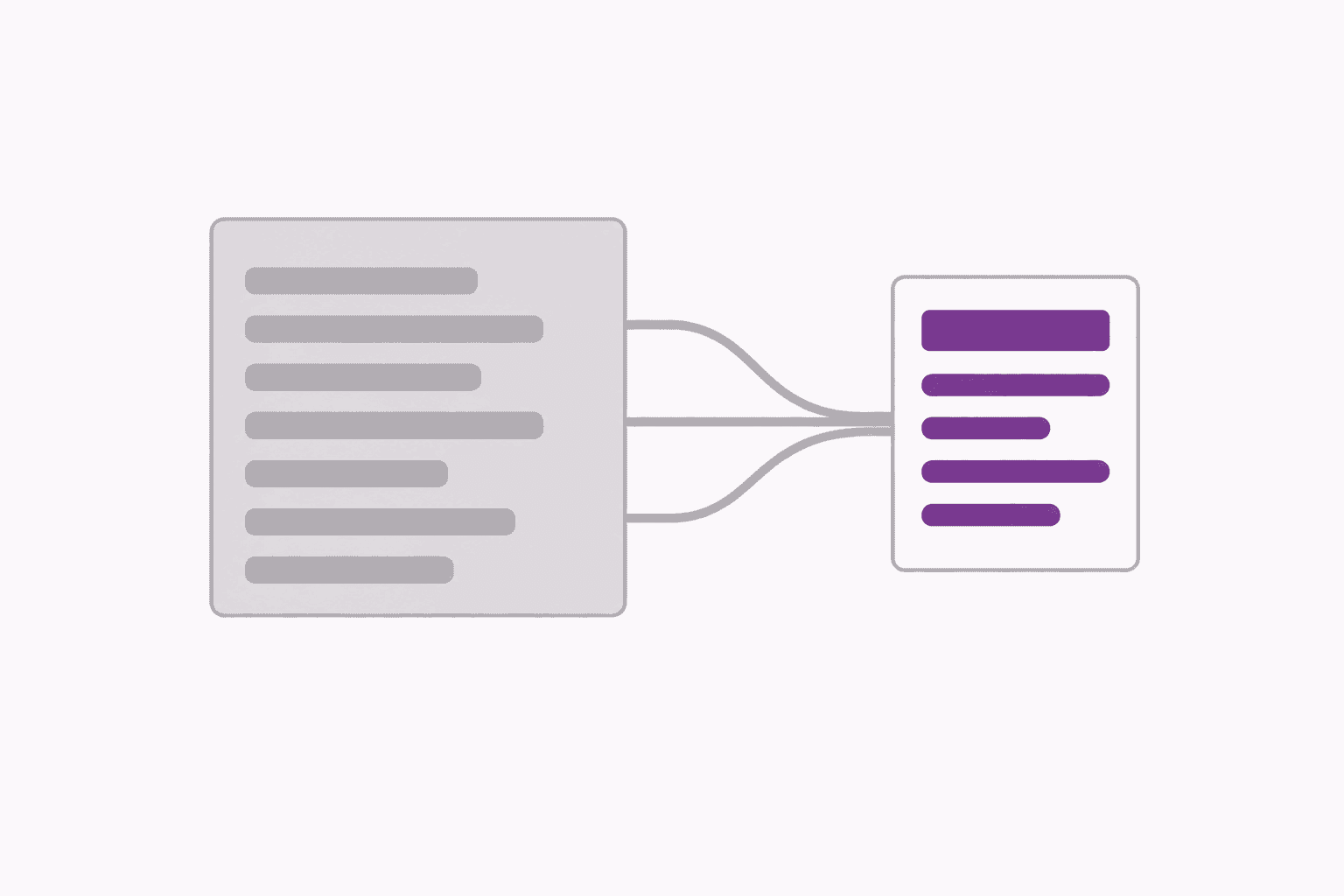
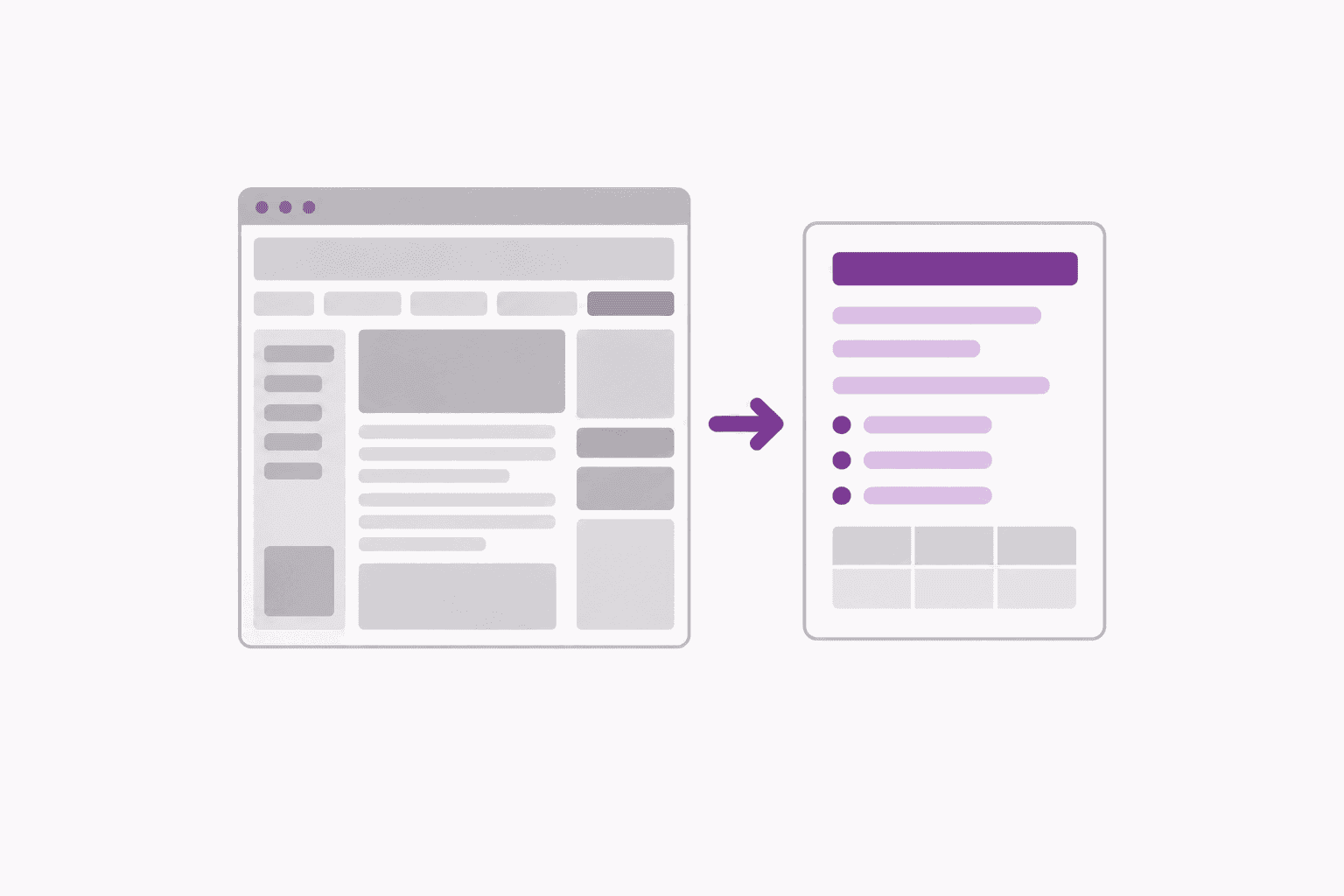
Markdown is plain text with a few simple marks: a # before a heading, a - before a list item, square brackets and a link in parentheses for a link, pipes for a table. It stays readable as text, and every notes app, code editor and AI chat understands it. A webpage turned into Markdown is the page’s words with its shape kept and everything else (menus, ads, cookie banners, share buttons) left out.
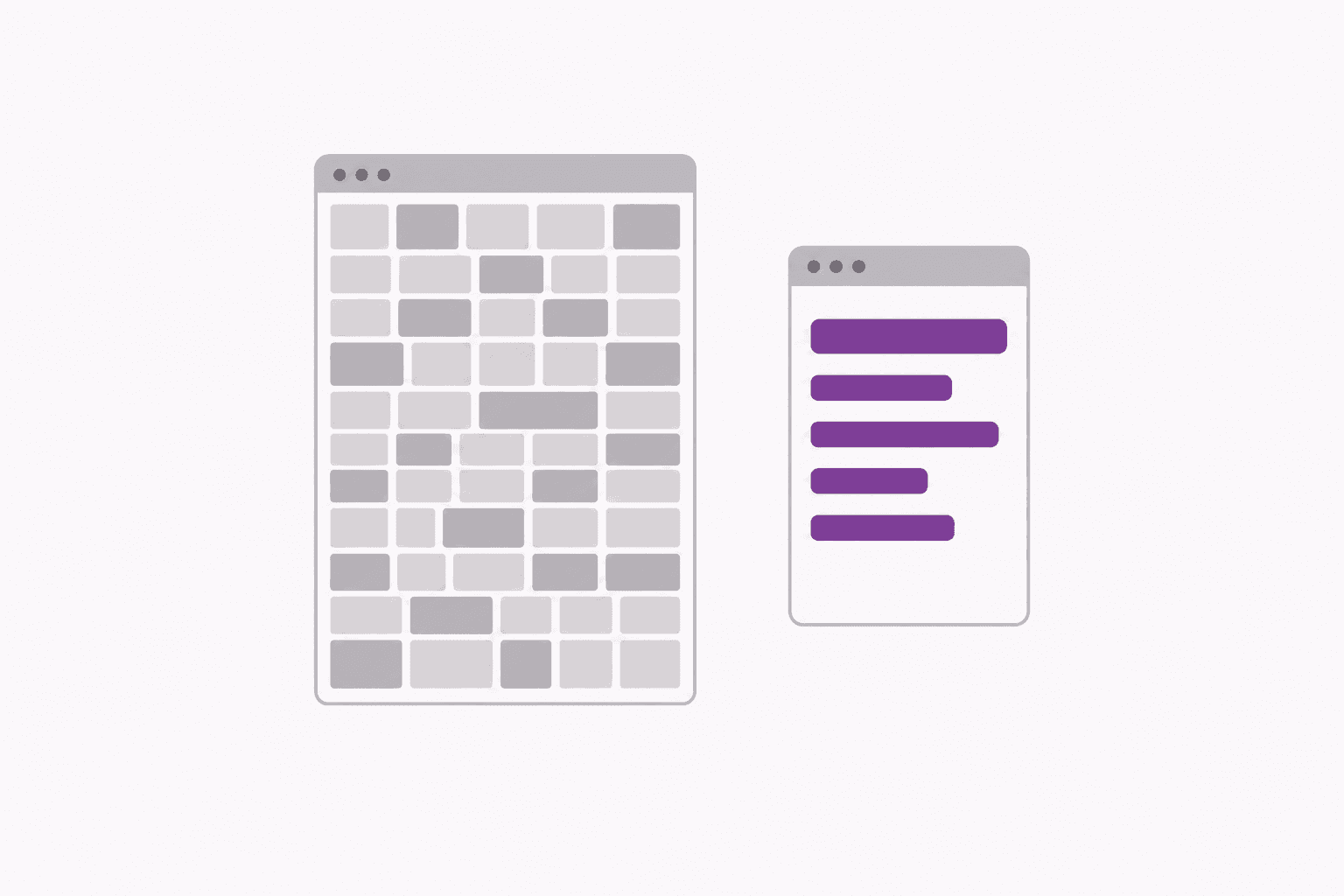
That matters for AI tools in two ways. The structure tells the model what is a heading and what is a list, so it answers more accurately. And text costs far fewer tokens than a picture of the same page; we counted it on a real page.
Three ways to convert a page
- In the browser, with an extension. Pick Markdown reads the page you are looking at, shows it as a clean document with a checkbox beside every heading, and copies the ticked sections as Markdown. It works on pages behind a login too, because it reads what is on your screen. Get the extension.
- By pasting. Select the text on the page, copy it, and paste it into the free HTML to Markdown converter. The formatting comes with the clipboard, so headings, lists, links and tables convert. Good for one-off jobs and for text from Google Docs, Word or Confluence.
- From a link. Paste the page’s address into a converter that fetches the page for you. Ours is on its way; services such as Jina Reader do this today. A link converter cannot see pages that need a login, and it takes the whole page, so you trim afterwards.
For a page you are reading right now, the extension is the shortest route. For text that is already on your clipboard, pasting is. A link converter suits scripts and automation more than reading.
A real before and after
The page is What Is a Black Hole? (Grades 5-8) on nasa.gov, an explainer written for students. In the browser it is 8 screens long: a hero banner, a byline, share buttons, a contents list, 11 sections with 5 pictures, and a footer. Here is what the extension copies when you tick one section, “Could a Black Hole Destroy Earth?”, and nothing else:
# What Is a Black Hole? (Grades 5-8) - NASA

Source: <https://www.nasa.gov/learning-resources/for-kids-and-students/what-is-a-black-hole-grades-5-8/>

> Capture notes: Embedded content was retained as a reference; its contents were not extracted. Some visual content has no extracted text; available descriptions are retained.

## What Is a Black Hole? (Grades 5-8)

### Could a Black Hole Destroy Earth?

Black holes do not wander around the universe, randomly swallowing worlds. They follow the laws of gravity just like other objects in space. The orbit of a black hole would have to be very close to the solar system to affect Earth, which is not likely.

If a black hole with the same mass as the sun were to replace the sun, Earth would not fall in. The black hole with the same mass as the sun would keep the same gravity as the sun. The planets would still orbit the black hole as they orbit the sun now.
Line by line: the first line is the page title as a level-one heading. The Source line is the page’s address, so whoever reads the Markdown, including an AI, can find where it came from. The Capture notes say what could not be converted; here, an embedded player was kept as a reference rather than its contents. Then come the headings, nested as they were on the page, and the paragraphs. Everything you did not tick is simply absent.
What converts, and what does not
Converts cleanly: headings and their levels, paragraphs, bold and italic, bullet and numbered lists, links with their addresses, quotes, code blocks with the language kept, and simple tables as pipe tables.
Converts with a change: pictures become a line that links to the picture with its caption, not the pixels themselves. Tables with merged cells are written out row by row, because Markdown tables cannot merge cells. Embedded videos and players become a single reference line. Maths becomes its plain-text form when the page provides one.
Does not convert: words that are inside a picture (a chart, a scanned page, a screenshot of text); menus, ads and widgets, which are left out on purpose; content a page only loads as you scroll or only shows after you click a tab. The extension tells you when a capture stopped early and lets you collect more; a paste or a link converter will not notice.
Tips for pasting into an AI
- Keep the Source line. It lets the model, and you, refer back to the page.
- Tick the section that answers your question rather than the whole page. The answer gets sharper and the message gets cheaper; one section of this page is about 7 times smaller than all of it.
- Leave the headings in. A model reads
## Could a Black Hole Destroy Earth?as a topic boundary; a wall of plain text has none. - If the meaning is in a chart or a diagram, send that picture as well. Text is cheaper, not always sufficient.